
Sound Controls
Sound Controls bring your device’s tone settings, switches and sound programs into its control card in Audio Control.
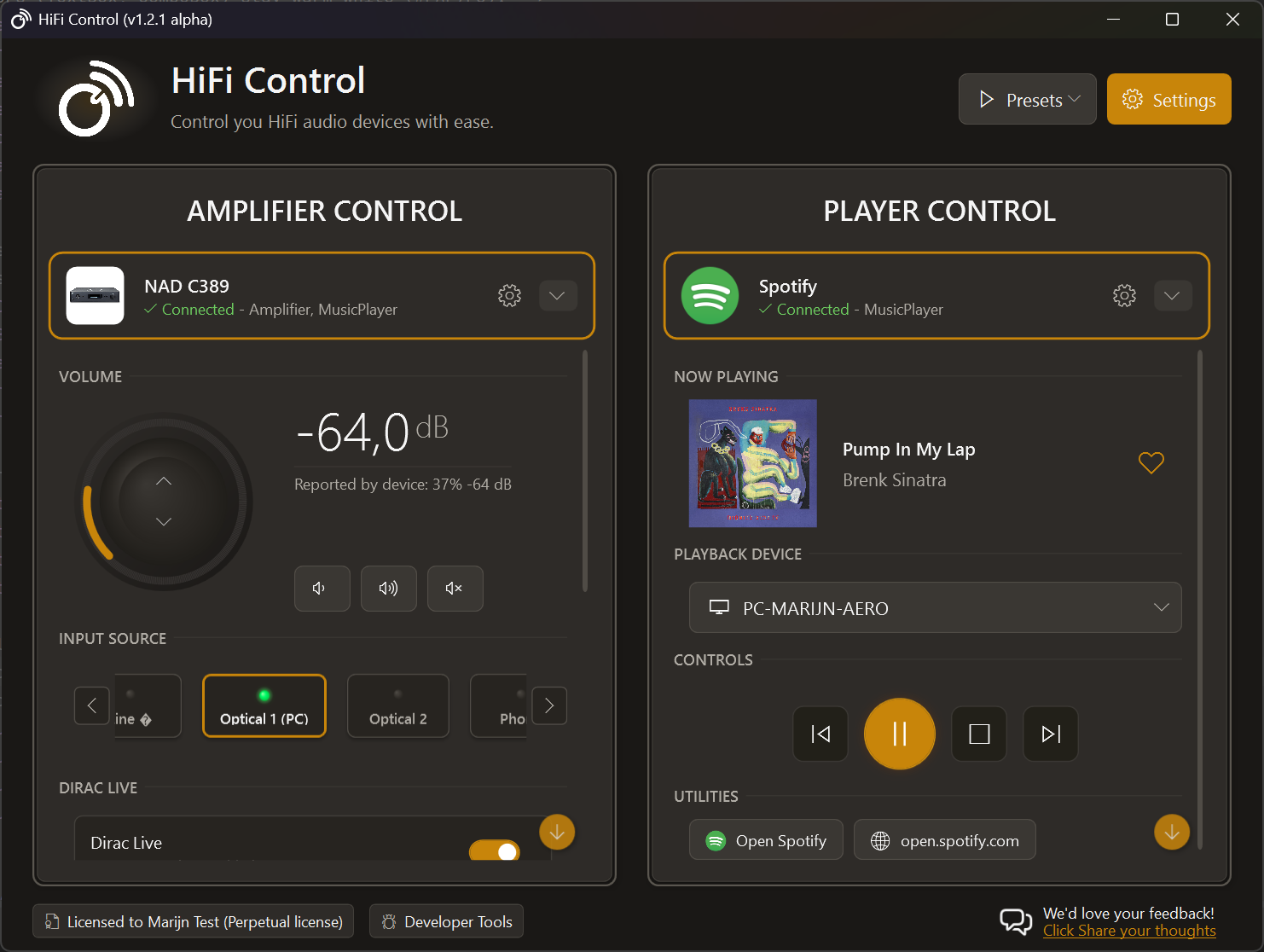
The main window in the dark theme. Available controls depend on your device.
Adjust a sound control
Section titled “Adjust a sound control”- Open Audio Control and select your amplifier or music player.
- Find the Sound section on its device card.
- Adjust a rotary control, use a switch, or select a named option such as a sound program.
Changes apply to the device immediately. The available range and step size come from the device. A control may be disabled when the device is in standby or when the current sound mode does not allow the adjustment.
For example, bass and treble may require tone controls to be enabled or set to manual mode. HiFi Control follows those dependencies rather than offering values the device cannot apply.
Which controls are available?
Section titled “Which controls are available?”The list depends on the model, firmware and current device state. These are examples, not a promise that every device in an ecosystem provides every control.
| Ecosystem | Examples |
|---|---|
| BluOS | Tone on/off, Bass, Treble and Balance |
| HEOS | Bass, Treble and Balance; Subwoofer level when an enabled subwoofer is reported; Vertical placement on supported speakers |
| MusicCast | Bass and Treble or Low/Mid/High equalizer bands, Balance, Dialogue level, Subwoofer level, Direct/Pure Direct, Enhancer, Clear Voice and Sound program |
Some MusicCast speakers expose Bass Booster as a switch. Receivers with a larger program list instead show a Sound program selector.
These are controls provided by the audio device. HiFi Control does not add an equalizer to the PC’s audio output.
Choose what the card shows
Section titled “Choose what the card shows”Open the Sound section’s options button to reach Configure Sound Controls. Choose which controls to show and change their order. The choice is saved for that device, so different devices can have different layouts.
If every control is hidden, use the section settings to show them again.
Save adjustments in a Preset
Section titled “Save adjustments in a Preset”- Open Settings → Presets and create or edit a Preset.
- Choose Add Action.
- Add Set Amplifier Sound Control or Set Music Player Sound Control for the intended device.
- Choose the control and its target value, switch state or named option.
- Add another action for each additional adjustment.
Put dependent actions in order: for example, enable tone controls before setting Bass and Treble. See Presets for power, readiness and timing actions.
Compare or control from your desk
Section titled “Compare or control from your desk”- Sound A/B Test compares groups of adjustments or saved Presets. It requires Advanced or Premium, including an Advanced Lifetime license.
- Sound Controls on Stream Deck puts supported controls on keys and dials. The v1.7.0 beta needs the matching Stream Deck plugin preview.
If a control is missing
Section titled “If a control is missing”Check that the intended device is connected and powered on, that the control is not hidden, and that its current sound mode allows it. Controls only appear when the device reports support; similar-looking models can expose different options.
For room names, display brightness, standby behaviour and other setup options, use Device Settings.