
Device Settings
Device Settings lets you edit setup options reported by your saved audio device, such as its name, display brightness or standby behaviour.
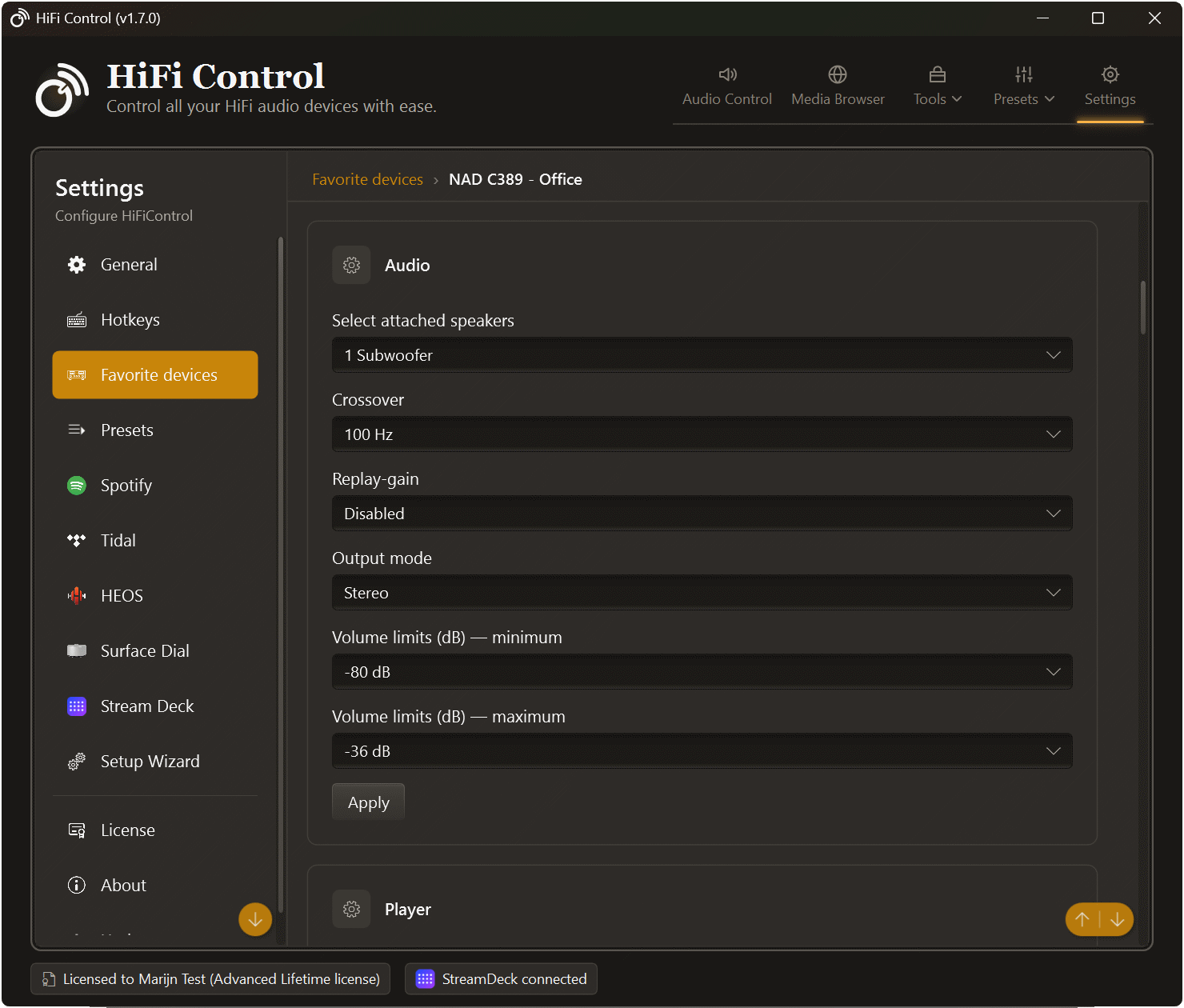
A NAD C389’s Audio settings in HiFi Control v1.7.0. Other devices can show different sections.
Open and apply settings
Section titled “Open and apply settings”- Open Settings → Favorite Devices and select the saved device.
- Open its Device Settings panel and find the device-specific sections.
- Edit the options in one section.
- Select that section’s Apply button.
- Check the result message. Use Reload device settings to read the current values again.
The device must be reachable for its settings to load. Some options also require it to be powered on.
The Display Name, saved address, product image and HiFi Control volume limit are application preferences described in Favorite Devices. A device-specific room or network name changes the name stored on the hardware itself.
Examples by ecosystem
Section titled “Examples by ecosystem”HiFi Control reads the settings supplied by the player. Depending on the device, these can include:
- Room name and indicator brightness.
- Audio setup such as subwoofer count, crossover, ReplayGain, output mode and volume limits.
- Source names, visibility, Bluetooth behaviour and supported delay or A/V options.
- Music-library artwork and USB server options.
- Links to the player’s own Wi-Fi or network-share setup pages.
Only supported fields reported by the player are shown. Reset, firmware-update, IR-learning and library-reindexing workflows are not offered as editable settings.
Depending on the model and the settings it reports, HiFi Control can show:
- Room name, grouped-audio quality, LED brightness and touch controls.
- Language, time-zone and daylight-saving settings.
- Supported network information and IPv4 configuration.
- Model-specific volume limits, subwoofer/crossover and TV-audio options.
- Display brightness, automatic standby, Eco mode and sleep timer on compatible Denon/Marantz receivers.
A HEOS speaker, streaming amplifier and AV receiver can expose quite different options. Firmware updates, speaker pairing and room-calibration workflows remain in the manufacturer’s tools.
MusicCast
Section titled “MusicCast”Supported settings are organised into sections such as:
| Section | Examples |
|---|---|
| Standby, display and outputs | Automatic standby, network standby, brightness, infrared remote, speaker and HDMI outputs |
| Speaker calibration | Select an existing stored speaker setup |
| Device name | Change the device’s network name |
| Network configuration | Supported wired/Wi-Fi connection and DHCP or manual address options |
| Device information | Model, firmware and API version |
Stored speaker setup selects a pattern already saved on the receiver. Run YPAO and change calibration measurements on the receiver itself.
Network changes
Section titled “Network changes”Applying network settings can disconnect the device from its old address. You may need to discover it again or update the saved Hostname or IP Address in HiFi Control.
When DHCP is enabled, manual address fields are ignored. MusicCast Wi-Fi changes require the password to be entered again; it is not saved in HiFi Control.
If a change fails
Section titled “If a change fails”Read the message, then select Reload device settings before trying again. Some devices save a section’s fields one at a time, so earlier changes may already have reached the device even if a later one failed.
If a setting is absent, it may not be exposed by that model or firmware. Use Open Device Web Page, where available, or the manufacturer’s app for other setup tasks.
For everyday tone adjustments and sound programs, use Sound Controls.